How to find the Salesforce metadata behind text in Lightning
On this page 7 sections
Salesforce shows text; it does not say where the text came from. A few words on a Lightning record page can be a field label, a picklist value, a record type, a Custom Label read by a component, a layout section heading, a button or a related list title, and each is defined and translated somewhere different. To find the API name behind it: if you know the object, start in Object Manager; if the text may be a Custom Label, search the labels by their value; and if you do this often, query the metadata or use a browser tool that reads it from the page.
Why this is harder than it looks
- The same words can have several owners. Two objects can each have a field labelled Assigned Agent; a Custom Label can hold the same words as a field label; a record type and a picklist value can share a name.
- Translation hides the source. In a user's language the page shows the translation, while Setup mostly shows the default language. A ticket that quotes the Dutch has to be matched against the Dutch.
- Standard labels can be renamed. Rename Tabs and Labels changes what a standard field or object is called, per language, without changing its API name.
- Components can print anything. A Lightning component may print a Custom Label, a field label it reads from metadata, or a string written into its code. Only the first two can be translated.
In Setup, when you know the object
- Setup → Object Manager → the object → Fields & Relationships.
- Type the label into the quick-find box. The list shows each field's Field Label and its Field Name, which is the API name.
- Open the field to see its type, its help text and, for a picklist, where its values come from.
For a picklist value, open the field and read its values: each value's label and API name are side by side. For a section heading, open the page layout (or the Lightning record page in Lightning App Builder) and look for the section. For a button, the object's Buttons, Links, and Actions.
When the text might be a Custom Label
Setup → Custom Labels lists every label with its value. A label only appears on a page because something reads it, so the component is the other half of the confirmation: in its source, a Custom Label is referenced by name ($Label.c.Name, @salesforce/label/c.Name, System.Label.Name).
With a query
When you do this more than once a week, a query is faster than clicking. For fields, SOQL on FieldDefinition returns labels and API names. A query on it must filter on the object, and it can filter on the label as well. Label comes back in the language of the user running the query when the label is translated, so filter on the words as that user sees them:
SELECT QualifiedApiName, Label, DataType
FROM FieldDefinition
WHERE EntityDefinition.QualifiedApiName = 'Account'
  AND Label = 'Customer Status'
For Custom Labels, the Tooling API has them as ExternalString records, and their translations as ExternalStringLocalization; both can be filtered on Value:
SELECT Name, Value, NamespacePrefix
FROM ExternalString
WHERE Value LIKE '%identity document%'SELECT ExternalStringId, Language, Value
FROM ExternalStringLocalization
WHERE Value LIKE '%identiteitsbewijs%'The second query is the one for a ticket that quotes another language. In the Developer Console, tick Use Tooling API for the Custom Label queries. What no query can tell you is which of several matches a given page is showing.
Browser tools
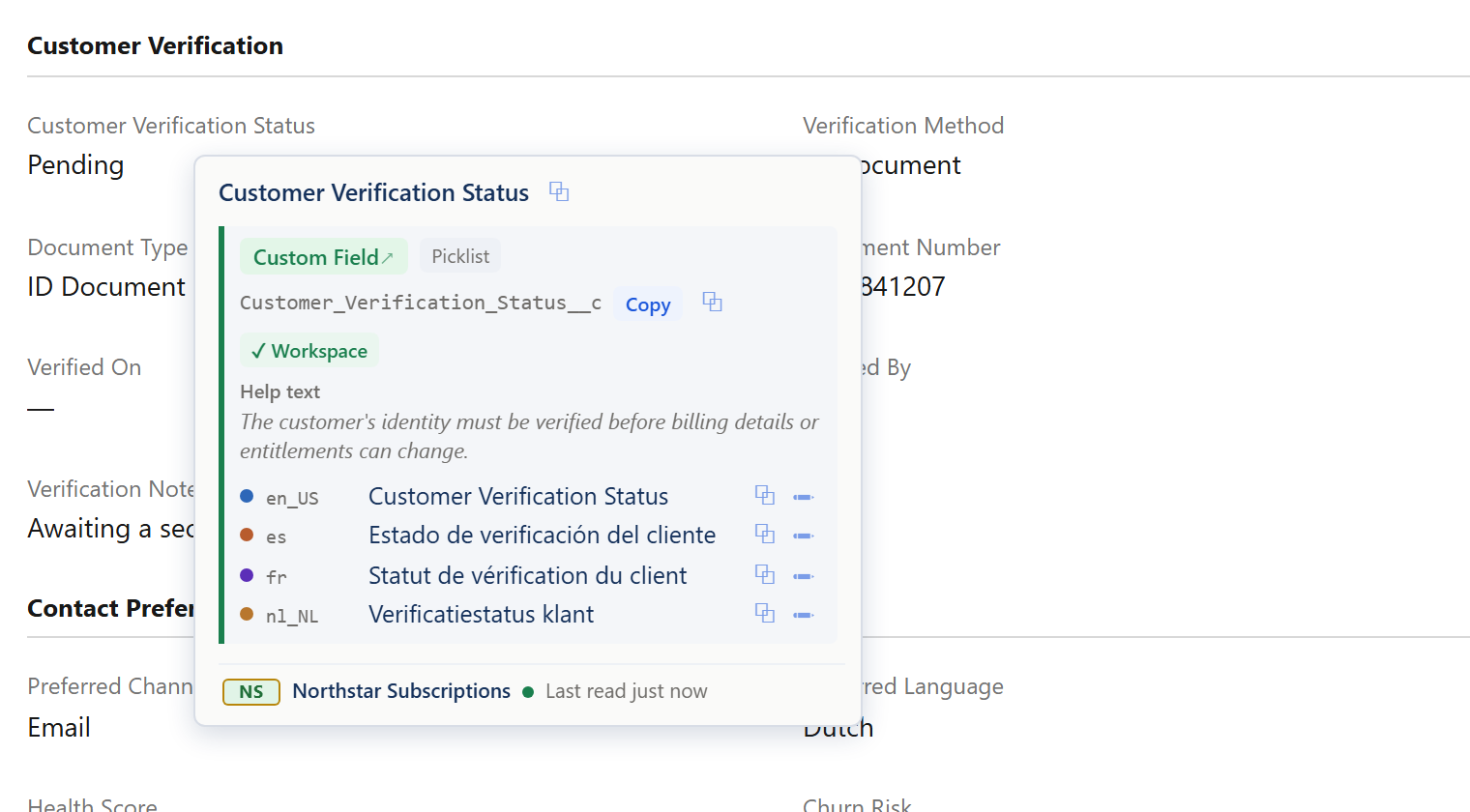
Several Chrome extensions read this from the page instead. Those that show API names next to the fields of a record page answer the most common case, a field label, at a glance. Salesforce Inspector Reloaded has such an option, and several smaller extensions are built around it; each one's store listing says what else it identifies.
A quick way to decide where to look
| The text on the page is… | It is most likely… | Start in |
|---|---|---|
| Beside a value, where a field's name goes | a field label | Object Manager → Fields & Relationships |
| Inside a field, one of a fixed set | a picklist value, or a record type | the field's values; Record Types |
| A heading above a group of fields | a layout section | the page layout, or Lightning App Builder |
| A button or an action | a custom button, link or quick action | Buttons, Links, and Actions |
| A title over a list of related records | a related list | for a custom relationship, the lookup or master-detail field on the related object (its Related List Label); for a Dynamic Related List, the list's own properties in Lightning App Builder |
| A sentence in a custom component | a Custom Label, or text in the code | Custom Labels; the component's source |
Related guides
- Translating a Salesforce org: where every label is translatedA map of which Setup page translates which label, how to translate many at once, the metadata types behind them, and how to check the result.
- How to translate Custom Labels in SalesforceThree ways to translate a Custom Label, how code picks the translation at runtime, the three different length limits, and the retrieve pitfall that catches developers.
- How to find missing translations in SalesforceFind untranslated and out-of-date labels systematically: with Translation Workbench's export and grid, on the pages users see, and with a release checklist.